

In May, AMD made waves in the gaming world with the launch of its FSR4 technology alongside the 9070 XT graphics card. This move was a significant step in leveling the playing field in the competitive discrete GPU market, particularly in addressing a feature gap with rival Nvidia, which had persisted for nearly seven years. Although FSR4 significantly narrowed the quality gap with Nvidia’s DLSS Transformer model, it still faces challenges in terms of game support.
Current Game Support Landscape: AMD FSR4 vs. NVIDIA DLSS4
Up until September, AMD had announced support for FSR4 in over 85 games, a rapid expansion since its initial launch with 30+ titles. However, this is still a smaller number compared to the 175+ games that support DLSS4 as of August. A critical disadvantage for AMD is the lack of an upscaler upgrade option similar to Nvidia’s, which allows nearly universal DLSS support through their app. FSR4 upgrades are limited to games supporting FSR3.1 and above, putting AMD at a notable disadvantage.

Community innovators have stepped in to address these limitations. Optiscaler is a versatile mod that enables users to enjoy FSR4 upscaling using the game’s built-in FSR or DLSS inputs, starting from version 2.x. This solution brings a much-needed flexibility to AMD’s ecosystem, though it’s not as streamlined as one might hope. Many users have successfully implemented Optiscaler in games like Clair Obscur and A Plague Tale: Requiem, witnessing impressive results.
Installing Optiscaler: A Step-by-Step Guide
To install Optiscaler, visit their GitHub page and download the latest release from the “Releases” section, ensuring you grab the Optiscaler.7z package. Begin by extracting this package, then locate your game’s installation folder. The path varies: for Game Pass titles, it’s typically found in C:XboxGames, while Steam games are located in C:Program Files (x86)Steamsteamappscommon.
After accessing your game’s directory, drop the extracted Optiscaler files into the game folder and run setup_windows.bat. Follow the prompts, selecting options based on your GPU type and desired inputs – notably, DLSS inputs may enhance output quality though they can be less stable.
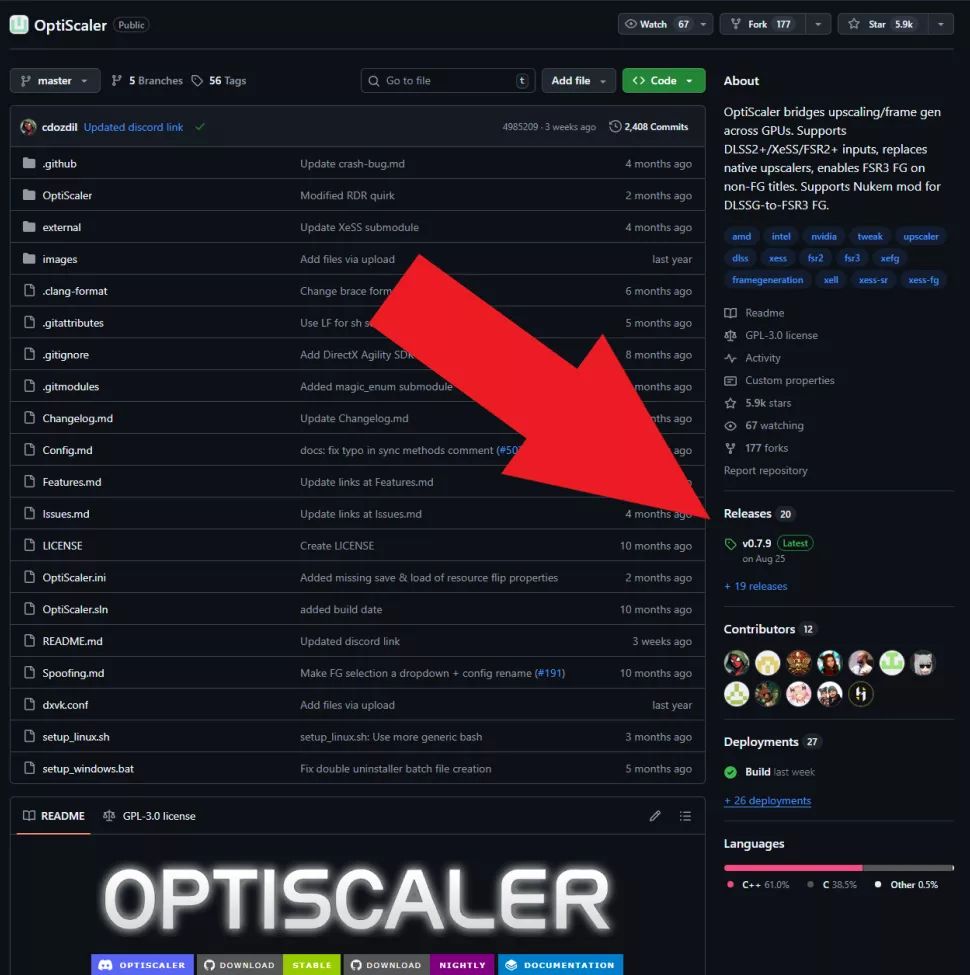
Complete the setup by copying the “amdxcffx64.dll” file from C:WindowsSystem32 to your Optiscaler installation folder. Once installed, configure Optiscaler in-game by accessing the graphics menu and enabling your preferred upscaling method. Enter the game, press Insert to open Optiscaler, and adjust settings to achieve the best visual quality.
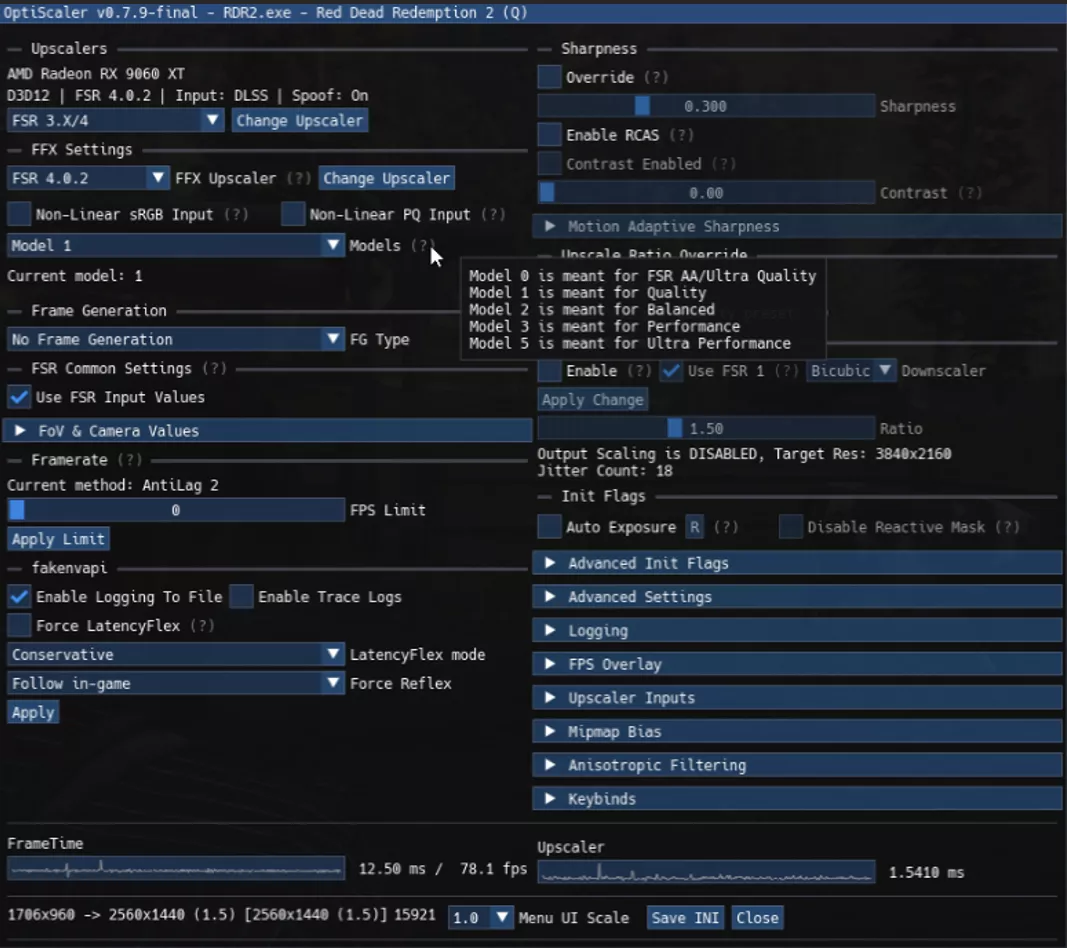
And there you have it! Enjoy enhanced gaming with a sharp FSR4 upscaled image. For further customization, modify the Optiscaler menu keybind in the Optiscaler.ini file.