

Gaining insights into your system’s performance while gaming can greatly enhance your experience. Real-time on-screen display (OSD) overlays can provide crucial data like framerate, hardware utilization, and temperatures. At the core of these overlays is RivaTuner Statistics Server (RTSS), renowned for its flexibility and compatibility in the gaming community.
Understanding RivaTuner Statistics Server (RTSS)
RTSS is a lightweight utility that integrates with DirectX/OpenGL/Vulkan games to render performance metrics. Initially a companion for RivaTuner’s overclocking tools, it now stands alone, supporting tools like MSI Afterburner to display real-time data in games.
You can download RTSS from:
RTSS RivaTuner Statistics Server Download
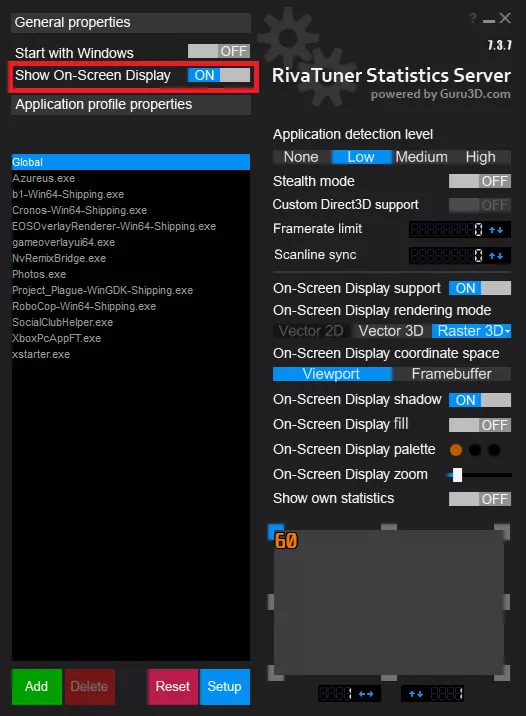
After installation, ensure the Show On-Screen Display toggle is set to ON to enable overlay visibility.
Setting Up Overlays with MSI Afterburner
MSI Afterburner, developed by Alexey Nicolaychuk, offers seamless integration with RTSS for comprehensive performance monitoring. It supports various GPUs and provides features like GPU fan control and voltage adjustment.
Download Afterburner from:
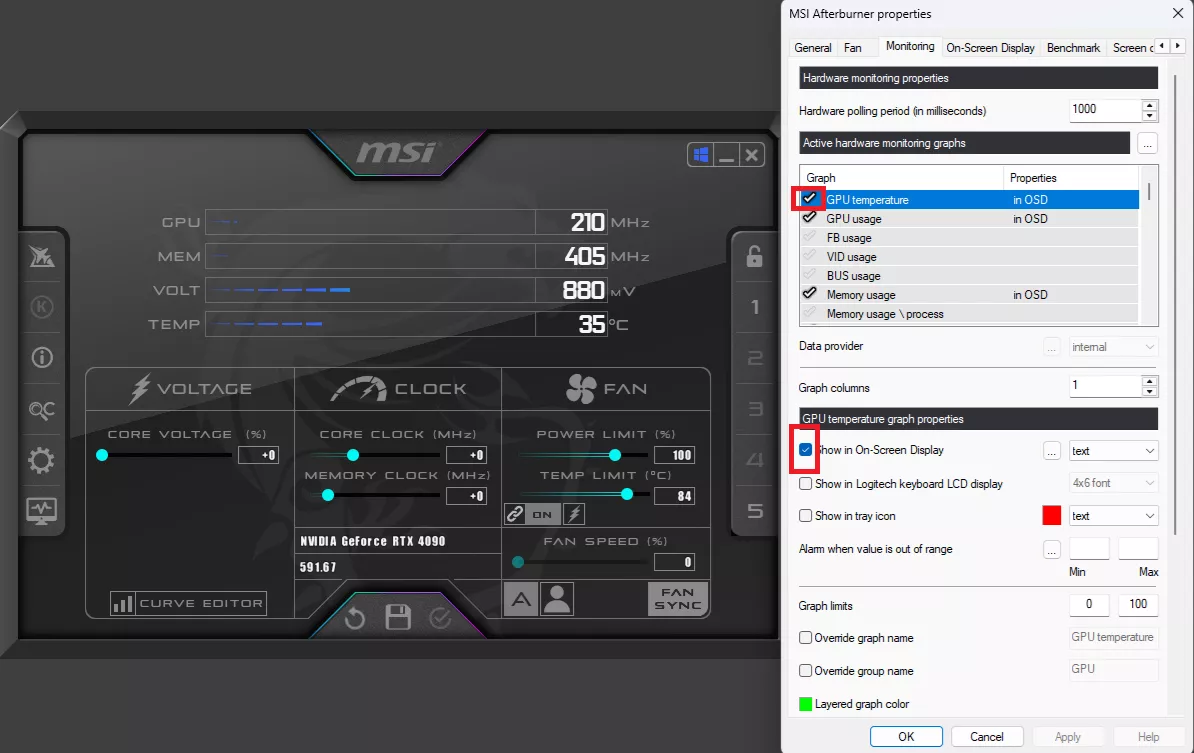
Ensure RTSS is included during installation. Afterburner allows you to set up custom overlays by selecting hardware metrics to display in real-time.
Creating Custom Overlays
Build your own overlay in MSI Afterburner by navigating to the Monitoring tab and selecting the metrics you wish to display. Assign a hotkey to toggle the overlay during gameplay.
Utilizing CapFrameX for Benchmarking
CapFrameX is ideal for detailed benchmarking. It uses RTSS to render overlays, allowing for extensive customization of performance metrics, including frametime graphs and latency info.
Download CapFrameX from:
In the Overlay tab, customize which metrics to display and how they are organized, with options to adjust colors and formats for clarity.
Overlay Customization
Customize overlay items and settings in CapFrameX to tailor the experience to your needs, ensuring clarity and precise performance tracking.
For those seeking advanced setups, TroyMetrics Benchmark Overlays offer professional features like adaptive CPU displays and frametime graphs.
Access TroyMetrics overlays from:
TroyMetrics Benchmark Overlays
With the right setup, you can achieve a powerful, real-time insight into your gaming performance, allowing for informed decisions on settings and hardware upgrades.